
Creating and Using Presets for Consistent Wildlife Editing
Presets are a powerful tool for wildlife photographers looking to streamline their editing workflow and maintain consistency across their images. By creating and using presets effectively, you can significantly reduce editing time while ensuring a cohesive look for your wildlife portfolio.
Developing Custom Presets
To create custom presets tailored to your wildlife photography:
- Edit a representative image to your desired style.
- In the Develop module, click the “+” icon in the Presets panel.
- Choose which settings to include in your preset.
- Name your preset and save it to an appropriate folder.
Consider creating presets for different lighting conditions, species, or environments you frequently encounter. For example:
- Golden hour wildlife
- Overcast day birds
- Low-light mammals
- High-contrast savanna scenes
Organizing Your Presets
Keep your presets organized for easy access:
- Create preset folders based on categories (e.g., “Birds,” “Mammals,” “Landscapes”).
- Use descriptive names that indicate the preset’s effect.
- Regularly review and refine your preset collection.
Applying Presets Efficiently
To maximize the benefits of presets:
- Apply presets during import for a quick starting point.
- Use the Quick Develop panel in the Library module to apply presets to multiple images simultaneously.
- Create preset stacks to combine multiple effects.
Remember that presets are starting points. Fine-tune the settings for each image to account for variations in lighting and subject.
Synchronizing Settings Across Similar Wildlife Photos
Synchronizing settings is a crucial technique for efficiently editing large batches of similar wildlife photos. This approach is particularly useful when processing images from a single shooting session or of the same subject under consistent conditions.
Methods for Synchronizing Settings
Lightroom offers several ways to synchronize settings:
- Sync Button: After editing one image, select multiple similar photos and click the “Sync” button in the Develop module.
- Auto Sync: Enable Auto Sync by toggling the switch next to the Sync button. This automatically applies adjustments to all selected photos as you edit.
- Copy/Paste Settings: Use the “Copy” and “Paste” commands to apply settings from one photo to others.
Best Practices for Synchronizing
To effectively synchronize settings:
- Choose a representative image as your base edit.
- Make all necessary adjustments to this image.
- Select similar photos taken under the same conditions.
- Use the Sync button to apply settings, choosing which adjustments to synchronize.
Be cautious when synchronizing local adjustments or cropping, as these may not translate well across different compositions.
Advanced Synchronization Techniques
For more nuanced synchronization:
- Use Smart Collections to group similar images automatically.
- Leverage virtual copies to experiment with different edits without duplicating files.
- Utilize the “Previous” button to quickly apply the last used settings to the next image.
Exporting Your Wildlife Images for Various Purposes
Exporting is the final step in your wildlife photography workflow, preparing your images for their intended use. Different purposes require different export settings to ensure optimal quality and compatibility.
Setting Up Export Presets
Create export presets for common use cases:
- Web/Social Media: Lower resolution, sRGB color space
- Print: High resolution, Adobe RGB or ProPhoto RGB color space
- Client Delivery: Full resolution, minimal compression
To create an export preset:
- In the Export dialog, configure your desired settings.
- Click “Add” in the Preset panel to save your configuration.
Optimal Export Settings for Different Purposes
Web and Social Media
- File Format: JPEG
- Color Space: sRGB
- Resolution: 72 PPI
- Dimensions: Long edge 1080-2048 pixels (platform dependent)
- Quality: 70-80%
- File Format: TIFF or high-quality JPEG
- Color Space: Adobe RGB or ProPhoto RGB
- Resolution: 300 PPI
- Dimensions: Based on print size
- Quality: 100% for JPEG
Client Delivery
- File Format: TIFF or high-quality JPEG
- Color Space: Adobe RGB
- Resolution: 300 PPI
- Dimensions: Full resolution
- Quality: 100% for JPEG
Watermarking and Metadata
Consider adding watermarks to images shared online:
- Create a custom watermark in Lightroom’s watermark editor.
- Apply the watermark during export to protect your copyright.
Include relevant metadata in your exports:
- Copyright information
- Contact details
- Keywords and captions
Batch Exporting
For efficient exporting of multiple images:
- Select all relevant photos in the Library module.
- Choose File > Export or use the Export button.
- Apply the appropriate export preset.
- Specify the export location and file naming convention.
Post-Export Workflow
After exporting:
- Organize exported files into appropriate folders.
- Back up your exported images.
- Update your portfolio or client galleries with new exports.
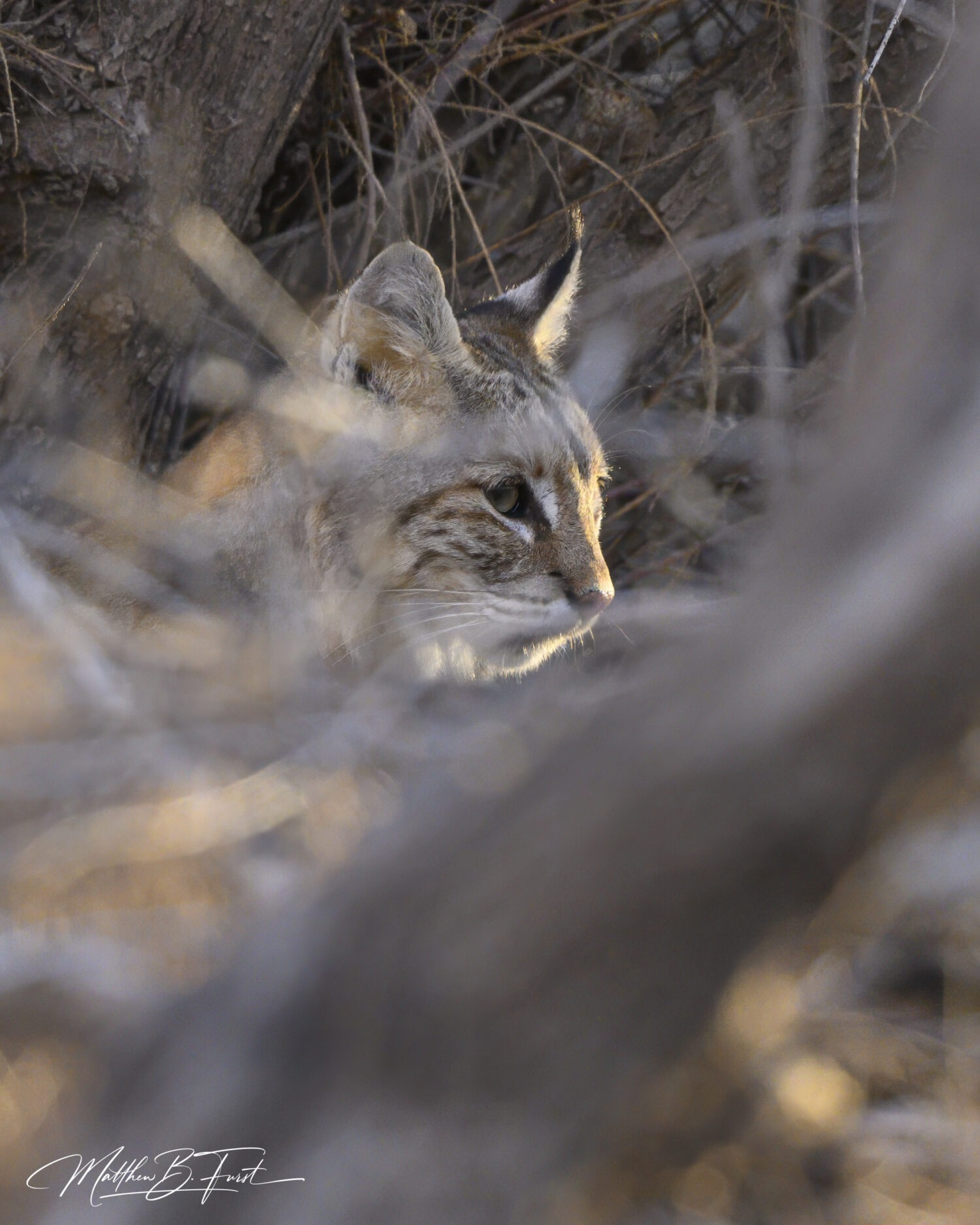
Conclusion: Optimizing Your Wildlife Photography Workflow
Efficient workflow optimization is crucial for wildlife photographers dealing with large volumes of images. By creating and using presets, synchronizing settings across similar photos, and setting up streamlined export processes, you can significantly reduce your editing time while maintaining consistent, high-quality results.
Remember that workflow optimization is an ongoing process. Regularly review and refine your presets, synchronization techniques, and export settings to ensure they evolve with your photography style and the ever-changing demands of various platforms and clients.
As you implement these workflow optimization techniques, you’ll find more time to focus on capturing stunning wildlife images in the field, knowing that your post-processing workflow is efficient and effective. With practice, you’ll develop a seamless editing process that allows your creativity to shine while maintaining the highest standards of quality in your wildlife photography.